The drop tunnel interface is a pre-configured tunnel interface. This interface provides added security for traffic. An example of this would be if a static route bind interface is deemed the drop tunnel interface, then all the traffic for that route is dropped and not forwarded in clear.
If a static route bind-to-tunnel interface is defined for traffic (source/destination/service), and it is desired that traffic should not be forwarded in the clear if the tunnel interface is down, it is recommended to configure a static route bind-to-drop-tunnel interface for the same network traffic. As a result, if the tunnel interface is down, traffic is dropped due to the drop tunnel interface static route.
A drop tunnel interface should be used with a VPN tunnel interface although a drop tunnel interface can be used standalone.
When configuring a route over a VPN tunnel interface, if the tunnel is temporally down, the corresponding route entry is disabled as well. SonicOS looks up a new route entry for the connections destined for the VPN protected network. In deployments that do not have a backup link for a remote VPN network, no other correct route entry is available. Traffic is sent to a wrong route entry, generally the default route, which causes security issues such as internal data sent without encryption.
For deployments without a backup link, consider configuring the route table as in this example:
When the VPN tunnel interface configured as in this example, the traffic matches the drop interface and is not sent out. When the VPN tunnel interface resumes, traffic resumes also.
|
2
|
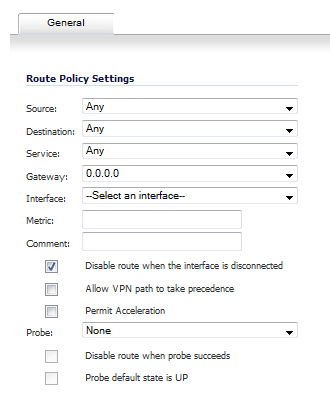
Click the Add button. The Add Route Policy dialog displays.
|
|
4
|
Under Interface, select Drop_tunnelIf.
|
Once added, the route is enabled and displayed in the Route Polices table.
