|
1
|
|
2
|
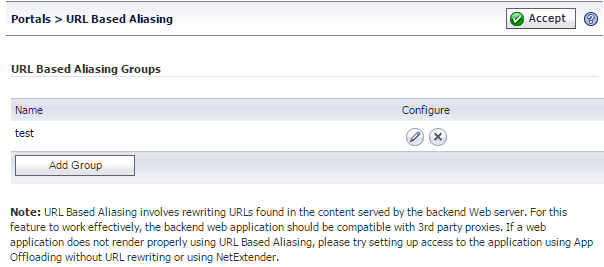
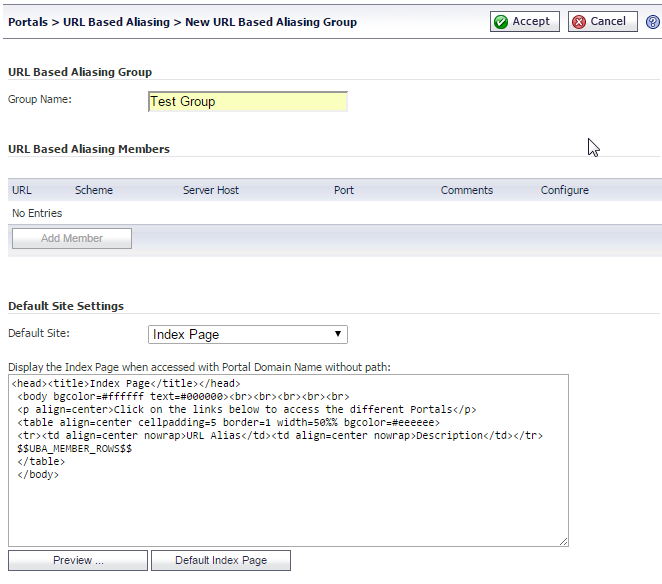
Under the URL Based Aliasing Groups section, click the Add Group button. The New URL Based Aliasing Group page displays.
|
|
3
|
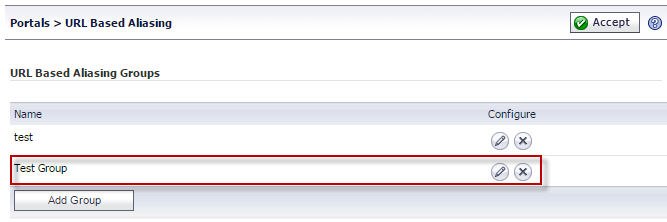
Enter a Group Name in the field provided. Then, click the Accept button. The newly added group will display on the URL Based Aliasing Groups list.
|
URL Based Aliasing allows you to add up to 100 members to a group.
|
1
|
|
2
|
Click the Configure icon of the group you want to modify. The Group URL Based Aliasing Settings page displays.
|
|
3
|
Click the Add Member button. The Add URL Based Aliasing Member page displays.
|
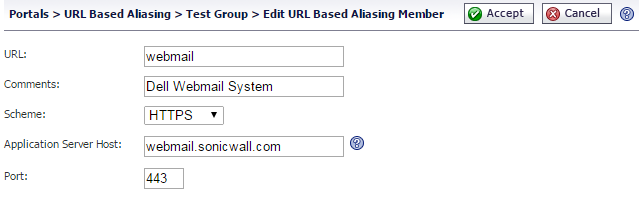
Configure the following fields:
|
•
|
URL — Enter the URL or name of the member.
|
|
•
|
Comments — Enter any additional information. Anything entered in this field displays on the Index page.
|
|
•
|
Scheme — Select from the dropdown list the scheme of the backend server. Select between HTTP, HTTPS, or AUTO.
|
|
•
|
Application Server Host — Enter a Hostname, IPv4 address, or IPv6 address of the host.
|
|
•
|
Port — Specify the port number. The default value is 443.
|
|
4
|
Click Accept to save changes and add a member to the group. The newly added member appears on the URL Based Aliasing Settings page.
|
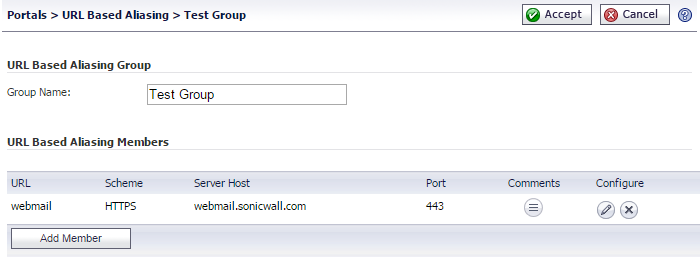
Repeat steps 2 through 4 for each member you wish to add to the group.
|
1
|
|
2
|
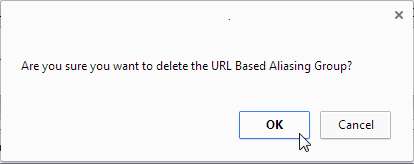
Click the Delete icon of the group you wish to delete.
|
|
2
|
Click the Delete icon of the member you wish to delete.
|
|
3
|
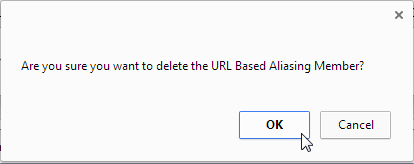
A confirmation for deleting the member appears. Click the OK button. Repeat these procedures for each group you want to delete.
|