AppFlow_Server
AppFlow_Server
AppFlow > AppFlow Server
This section describes how to configure a SonicWALL AppFlow Server as an external collector for AppFlow and real-time data reporting and analysis. Network administrators can configure a central AppFlow Server to support multiple SonicWALL appliances.
This section includes the following subsections:
Configuring AppFlow Server Settings
To configure an AppFlow Server, perform the following steps:
-
Navigate to the AppFlow > AppFlow Server page. To automatically retrieve status updates on your AppFlow server, select the Enable Keep-Alive with AppFlow Server checkbox.
-
In the AppFlow Server Address field, enter the IP address.
-
In the Source IP to use over VPN Tunnel field, enter the IP address reachable through a VPN tunnel.
-
In the AppFlow Server Max Flows field, enter the maximum number of flows stored in a single database file.
-
In the Sever Communication Timeout field, enter the number of seconds to wait to receive a response from the AppFlow server for AppFlow Monitor data. The range accepted are between 60 to 180 seconds.
-
Enter the name of your SonicWALL appliance. This name must be unique if more than on SonicWALL appliance device is used with a single AppFlow server.
-
In the Connection Passphrase field, enter the password for your AppFlow Server to respond to the SonicWALL appliance.
-
Select the Auto-Synchronize AppFlow Server checkbox. This will enable the SonicWALL appliance to send static flows to the AppFlow Server each time the SonicWALL appliance is rebooted.
-
Click the Test Connectivity button. This starts a “hello” packet transmission to the AppFlow Server. If the AppFlow Server responds, a green status message displays “Up.” If the SonicWALL appliance is registered on mysonicwall.com, a green status message displays “Registered.” And a time stamp is displayed when the last time the SonicWALL appliance sent a “hello” packet and received an acknowledged “hello” packet back from the AppFlow Server.
-
Click the Synchronize Server button. The SonicWALL appliance will start sending static flows to the AppFlow Server.
-
In the Server Discovery section, the Start Discovery button displays all the AppFlow Servers directly connected to your SonicWALL appliance device. In the Action column, click the Select button to auto-fill AppFlow Server IP address and settings information as the selected AppFlow Server for your SonicWALL appliance device. The Flush All and Flush buttons clears the discovery list.
Verifying AppFlow Server Configuration
Verify your SonicWALL appliance is using the AppFlow Server data by navigating to the AppFlow Monitor or Real-Time Monitor pages. At the top of the page next to the Data Source selection, the AppFlow Server radio button is selected and you can select from the Flow Database pull-down menu the available database flow files to display.
Deploying an External Collector AppFlow Server
This section describes installation, multiple administrator login, and configuring an external appflow server to support aggregate and individual unit reporting for multiple SonicWALL appliances.
This section includes the following subsections:
Installing the SonicWALL AppFlow Server Software Client
The SonicWALL AppFlow Server Software Client is available for download on MySonicWALL.com in the Software Download Center. To download this software, you will need to create a MySonicWALL.com user account and complete the product registration process for your SonicWALL appliances.
Configuring the SonicWALL AppFlow Server Settings
After installing the SonicWALL AppFlow Server Software Client, login to your SonicWALL AppFlow Server. In the SonicWALL AppFlow Server management interface, you can configure the server settings, add devices and users for AppFlow reporting.
To provision the SonicWALL AppFlow server, perform the following steps:
-
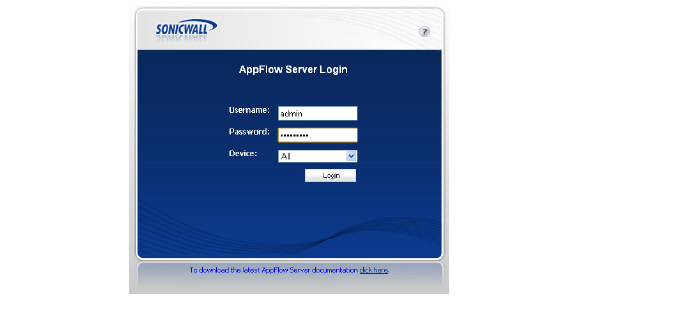
In a browser, enter the LAN IP address of your SonicWALL AppFlow server. The AppFlow Server Login window displays. Enter username and password. Upon initial login, the default username and password is admin and password.
-
Navigate to the System > Settings page. Enter the following UNIX server file directory path location details. The file directory paths listed below in italics are example file names and directory paths.
-
Database File: /data/
-
Serial File: /etc/appflow/<appflow.serial>
-
Log File: /var/log/<appflow.log>
-
Dump File: /var/log/<appflow.dump>
-
User Log File: /var/log/<user.log>
-
Enter the following AppFlow Collector server settings.
-
IPFIX UDP Port: <2055>
-
Mirror UDP Port: <5055>
-
Memory Pool Size: <500>
-
Dump Period: <30>
-
User Timeout: <599999>
-
Max Users: <50>
Adding a Device for AppFlow Server Database Collection
To add a SonicWALL appliance device, perform the following steps:
-
Navigate to the AppFlow > Devices page. Click the Add Device button. The Add Device pop-up window displays.
-
Enter the following information for your SonicWALL appliance device:
-
Serial Number: <00:17c5:72:g3:55>
-
Name: Enter a friendly name for your SonicWALL appliance.
-
Max Flows in DB: Select from 5,000 to 1,000,000 flows.
-
To delete database files, in the Action column click the edit icon. Enter the file count to deleted database files for the respective SonicWALL appliance device, and click the Apply button.
-
To remove a device, in the Action column click the remove icon. A pop-up warning dialog box displays to verify if you want to remove the selected device from the managed device list. Click the OK button to remove the device.
Adding Multiple Administrators to the SonicWALL AppFlow Server
This section provides procedures to add multiple users for AppFlow server administration. Similar to SonicOS multiple administrator settings, you can create user settings with the following user type restrictions:
-
Login to administer and view Dashboard AppFlow reports for only a single device
-
Login to only view aggregate Dashboard AppFlow reports for a group of SonicWALL appliance devices
-
Login with “Full Admin” privileges
To configure new users and set administrative privileges, perform the following steps:
This section is in progress.
AppFlow > Real-Time Monitor
Note: For increased convenience and accessibility, the Real-Time Monitor page can be accessed either from Dashboard > Real-Time Monitor or AppFlow > Real-Time Monitor. The page is identical regardless of which tab it is accessed through. For information on using Real-Time Monitor, refer to the Dashboard > Real-Time Monitor .
AppFlow > AppFlow Monitor
Note: For increased convenience and accessibility, the AppFlow Monitor page can be accessed either from Dashboard > AppFlow Monitor or AppFlow > AppFlow Monitor. The page is identical regardless of which tab it is accessed through. For information on using AppFlow Monitor, refer to the Dashboard > AppFlow Monitor.
AppFlow > AppFlow Reports
Note: For increased convenience and accessibility, the AppFlow Reports page can be accessed either from Dashboard > AppFlow Reports or AppFlow > AppFlow Reports. The page is identical regardless of which tab it is accessed through. For information on using AppFlow Reports, refer to the Dashboard > AppFlow Reports.